Docker
1. INTRODUCTION
WHAT IS IT ?
Docker is a platform for developers and sysadmins to develop, deploy, and run applications with containers.
HISTORY
ONE APPLICATION ON ONE PHYSICAL SERVER
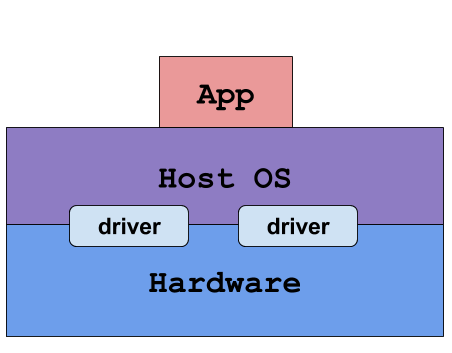
PROBLEMS
- slow deployment times
- Huge costs
- Wasted resources
- Difficult to scale or migrate
- Vendor lock in
HYPERVISOR-BASED VIRTUALIZATION
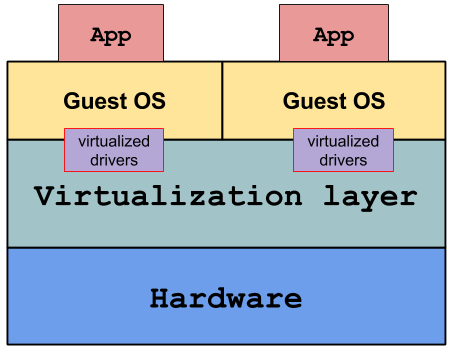
- One physical server can contain multiple applications
- Each application runs in a virtual machine
BENEFITS
- Better resource pooling
- one physical machine divided into multiple VM
- Easier to scale
- VM's in the cloud
- Pay as you go
LIMITATIONS
- Each VM stills requires
- CPU allocation
- storage
- RAM
- An entire guest operation system
- More VM's you run, the more resources you need
- Guest OS means wasted resources
CONTAINERS
Container based virtualization uses the kernel on the host's operating system to run multiple guest instances
- Each guest instance is called a container
- Each container has its own
- Root filesystem
- Processes
- Memory
- Network ports
CONTAINERS
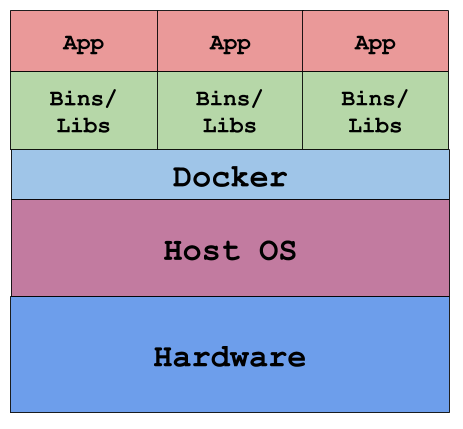
CONTAINERS VS VMS
- Containers are more lightweight
- No need to install guest OS
- Less CPU, RAM, storage space required
- More containers per machine than VMs
- Greater portability
2. CONCEPTS AND TERMS
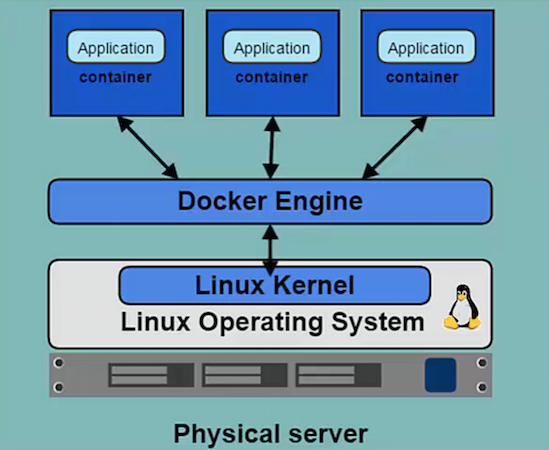
DOCKER AND THE LINUX KERNEL
- Docker Engine (deamon) is the program that enables containers to be built, shipped and run.
INSTALLATION
LINUX:
wget -qO- https://get.docker.com/ | shWINDOWS AND MAC OS X
Docker need linux kernel... so you will need a linux Virtual Machine. Docker toolbox contains everything needed.
VERIFY DOCKER INSTALLATION
This command download and run an hello world container
/*lets try*/
docker run hello-worldCHECKING CLIENT AND DAEMON VERSION
docker version/*lets see*/
IMAGES AND CONTAINER
Images
- Read only template used to create containers
- Built by you or other Docker users
- Stored in the Docker Hub or your local Registry
Containers
- Isolated application platform
- Contains everything needed to run your application
- Based on images
3. IMAGES
WHAT IS IT ?
An image is an executable package that includes everything needed to run an application--the code, a runtime, libraries, environment variables, and configuration files.
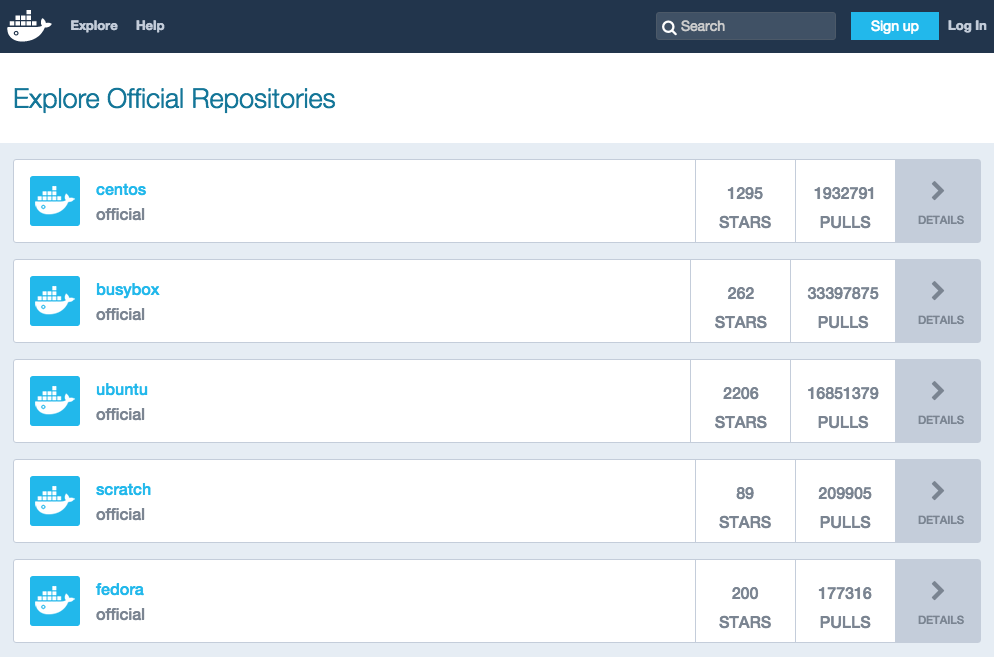
SEARCH FOR IMAGES ON DOCKER HUB
- lots of Images available for use
DISPLAY LOCAL IMAGES
- When creating a container, docker will attempt to use a local image first
- If no local image is found, the Docker daemon will look in Docker Hub unless another registry is specified.
/*lets take a look*/
docker images4. GETTING STARTED WITH CONTAINERS
CREATING A CONTAINER
Syntax
docker container run[OPTIONS] IMAGE [COMMAND] [ARG...]examples

/*Demo time*/
CONTAINER WITH TERMINAL
Use some options:
- -i flag tells docker to connect to STDIN on the container
- -t flag specifies to get a pseudo-terminal
EXAMPLE
docker container run -i -t ubuntu /bin/bash/*Demo time. Adding user*/
CONTAINER PROCESSES
- A container only runs as long as the process from your command is running
- Your command's process is always PID 1 inside the container
CONTAINER ID
- Containers can be specified using their ID or name
- Long ID and short ID
- Short ID and name can be obtained using docker container ls command to list containers
- Long ID obtained by inspecting a container
- use docker container ls to list running containers
- use docker container ls -a to list all containers (includes containers that are stopped)
/*Take a look*/
RUNNING IN DETACHED MODE
- Also know as running in the background or as a daemon
- Use -d flag
- To observe output use docker logs [container id]
Example
/*Take a look*/
docker run -d ubuntu ping 127.0.0.1 -c 50PORTS MAPPING
- Run a web application inside a container
- The -P flag to map container ports to host ports
Example
docker container run -p 80:80 nginx/*Take a look*/
5. DOCKERFILE
INTRO TO DOCKERFILE
A Dockerfile is a configuration file that contains instructions for building a Docker image
- Instructions specify what to do when building the image
- FROM instruction specifies what the base image should be
- RUN instruction specifies a command to execute
FROM ubuntu:14.04
RUN apt-get install -y vim
RUN apt-get install -y curl
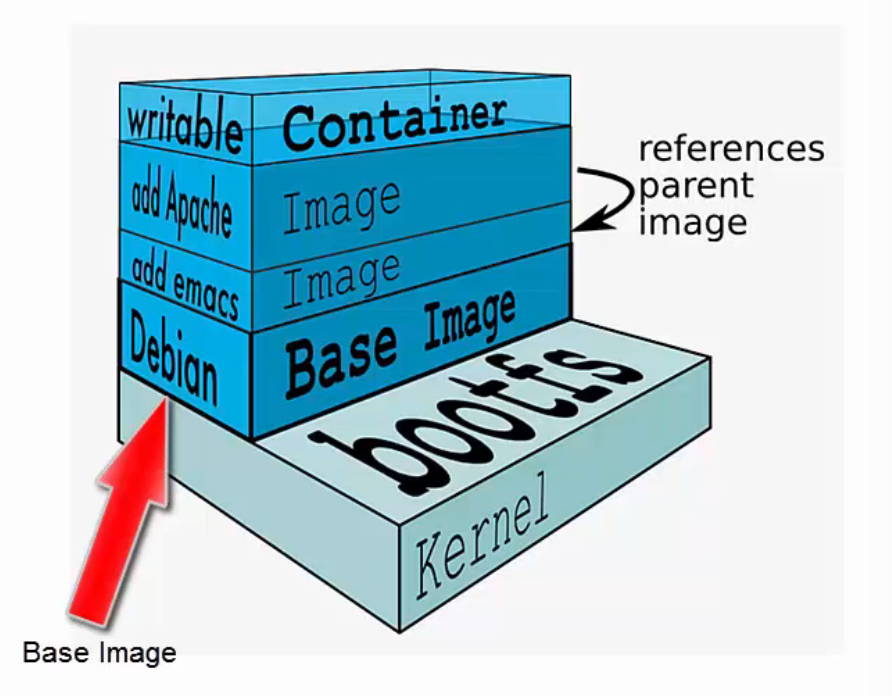
IMAGE LAYERS
- Images are composed of multiple layers
- A layer is also just another image
- Every image contains a base layer
- Docker uses a copy on write system
- Layers are read only
DOCKER BUILD
Build an image from a Dockerfile
Syntax
docker build [OPTIONS] PATH Example
docker build -t test-image:0.0.1 .CMD INSTRUCTION
- CMD defines a default command to execute when a container is created
- CMD performs no action during the image build
- Shell format and EXEC format
- Can only be specified once in a Dockerfile
- Can be overridden at run time
#Shell format
CMD ping 127.0.0.1 -c 30
#Exec format (json)
CMD ["ping", "127.0.0.1", "-c", "30"]
6. MANAGING IMAGES AND CONTAINERS
GETTING TERMINAL ACCESS
- Use docker exec command to start another process within a container
- Execute /bin/bash to get a bash shell
- Exiting from the terminal will not terminate the container
/*lets try */
docker exec -i -t [container ID] /bin/bashDELETING CONTAINERS
- Can only delete containers that have been stopped
- Use docker container rm command
- Specify the container ID or name
docker container rm cde647f6e1d2DELETING LOCAL IMAGES
- Use docker rmi command
- docker image rm [image ID]
- if an image is tagged multiple times, you have to delete each tag
docker image rm cde647f6e1d27. VOLUMES
VOLUMES
A volumes is a designated directory in a container, wich is designed to persist data, independent of the container's file cycle
- Persist when a container is deleted
- Can be mapped to a host folder
- Can be shared between containers
MOUNT A VOLUME
- Volumes are mounted when creating or executing a container
- Can be mapped to a host directory
- Volume paths specified must be absolute
#Execute a new container and mount the folder into its file system
docker run -it --name test-volume -v myvol2:/app ubuntu:14.04#Execute a new container and map the /data/src folder from the host into the /test/src folder in the container
docker run -it --name test-volume-2 -v $PWD:/app ubuntu:14.04
USES OF VOLUMES
- De-couple the data that is stored from the container which created the data (exemple logs)
- Good for sharing data between containers
- Can setup a data containers which has a volume you mount in other containers
- Mounting folders from the host is good for testing purpose but generally not recommended for production use
8. DOCKER COMPOSE
Docker Compose is a tool for creating and managing multi container applications
- Containers are all defined in a single file called "docker-compose.yml"
- Each container runs a particular component/service of your application.
For example:- Web front end
- User authentification
- Payments
- Database
- Compose will spin up all your containers in a single command
CONFIGURING THE COMPOSE YML FILE
- Defines the services that make up your application
- Each service contains instructions for building and running a container
version: '3'

services:
  db:
    image: postgres
  web:
    build: .
    command: python3 manage.py runserver 0.0.0.0:8000
    volumes:
      - .:/code
    ports:
      - "8000:8000"
    depends_on:
      - db
BUILD AND IMAGE INSTRUCTION
- Build defines the path to the Dockerfile that will be used to build the image
- Container will be run using the image built
- Image defines the image that will be used to run the container
- All service must have either a build or image instruction
RUNNING YOUR APPLICATION
- Use docker-compose build
- Build the image for each service
- Use docker-compose up
- Create and start the containers